Resources
 Feature overview
 bonnie
 2025-10-14 19:05
In modern life, whether you're watching videos, gaming, or working remotely, network speed plays a crucial role. If your internet feels slow, videos keep buffering, or games have high latency, it’s likely due to broadband or network issues.
This guide will show you how to perform a broadband speed test on both your phone and computer, helping you quickly measure upload and download speeds, ping, and network stability — so you can understand your network performance in just one minute.
I. Why Perform a Broadband Speed Test?
A broadband speed test isn’t just about checking your internet speed number — it’s a way to determine whether your network quality meets expectations. A proper speed test helps you measure several key indicators:
• Download Speed: Affects how fast web pages load, videos play, and files download.
• Upload Speed: Determines how smoothly you can upload files, join video meetings, or share content.
• Ping and Latency: Directly influence your online gaming and real-time communication experience.
• Packet Loss: Reflects network stability — high packet loss can cause frequent disconnections or lag.
By running a network speed test, you can verify whether your actual speed matches your ISP’s promised bandwidth and identify potential network issues early.
II. How to Test Broadband Speed on Your Phone
One of the biggest advantages of mobile speed testing is convenience — you can check your internet performance anytime, anywhere. Here’s how to do it:
• Open an online speed testing tool (for example, ToDetect Online Network Speed Test Tool).
• Connect to your Wi-Fi or mobile data network.
• Tap “Start Test.”
• View the results, including download speed, upload speed, Ping, and packet loss rate.
Mobile Speed Test Tips
• Make sure to close background downloads or video streaming to avoid affecting the test results.
• When the Wi-Fi signal is weak, move closer to the router.
• Run the test several times and take the average result for a more accurate reflection of your network performance.
By testing on your phone, you can quickly determine whether your home or office network is stable — especially useful for remote work and video conferencing scenarios.
III. How to Test Broadband Speed on a Computer
Testing your broadband speed on a computer provides more accurate and detailed data, especially useful for large file downloads or online gaming. Follow these steps:
• Open your browser and visit the ToDetect Online Network Testing Tool or other speed test sites
• Select a test server (you can usually keep the default option).
• Click “Start Test.”
• View your results, including download speed, upload speed, Ping value, and network stability.
Computer Speed Test Tips
• Use a wired (LAN) connection — it’s more stable and provides more accurate results than Wi-Fi.
• Avoid testing during peak hours or when the network is busy, as speeds may appear slower.
• Save your test history to compare network performance at different times.
By testing on your computer, you can determine whether your broadband meets the needs of your home or office and optimize your network settings based on the results.
IV. How to Tell If Your Internet Speed Is Normal
Once you get your test results, how do you know whether your network is performing well?
| Metric | Ideal Value | Explanation |
|---|---|---|
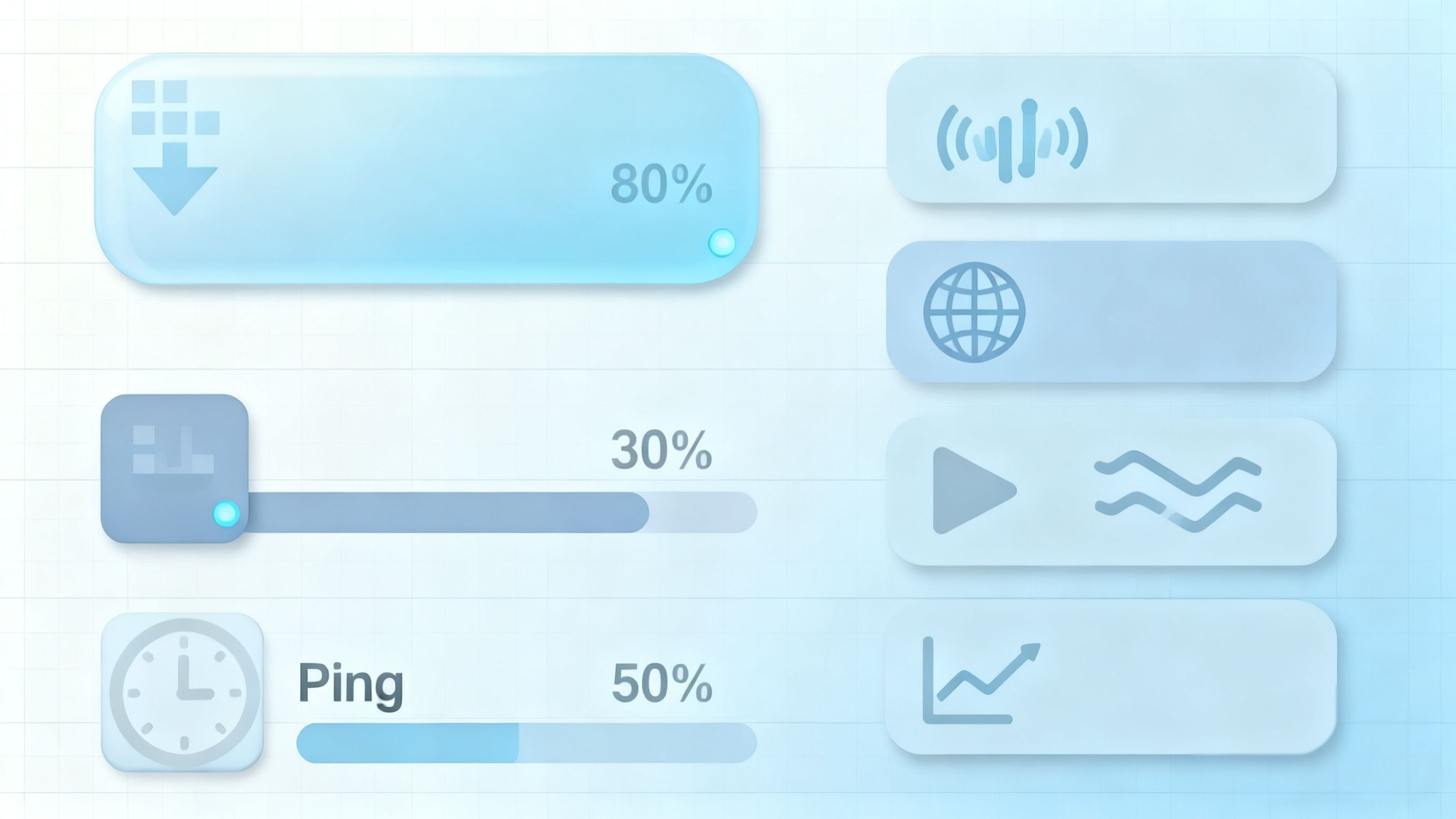
| Download Speed | ≥ 80% of your plan’s advertised speed | For example, a 100 Mbps plan should reach at least 80 Mbps. |
| Upload Speed | ≥ 30% of your plan’s advertised speed | Upload speeds are usually lower than download speeds. |
| Ping (Latency) | ≤50ms | The lower, the better—essential for gaming and video calls. |
| Packet Loss | 0% | Any packet loss indicates an unstable connection. |
If your test results are consistently below these levels, try testing at different times or with other devices. If speeds remain low, contact your ISP to check the line quality or consider upgrading your broadband plan.
V. Recommended Online Speed Test Tools
Here are several reliable online speed test tools suitable for both mobile phones and computers:
1. ToDetect Online Speed Test Tool
• Simple and fast — one-click broadband testing
• Displays download/upload speeds, Ping value, and packet loss rate
2. Speedtest.net
• World-renowned speed test platform with multiple global servers
• Saves test history for easy comparison at different times
3. Fast.com
• Netflix’s official speed test site — automatically checks download speed
• Extremely user-friendly and ideal for testing video streaming performance
4. nPerf
• Tests speed, browsing quality, and video playback smoothness
• Provides nationwide network performance maps and data
With these tools, you can easily check broadband and network speed results on both your phone and computer, helping you better understand and optimize your internet performance.
Summary
• Broadband and network speed tests are the best ways to evaluate your internet speed and stability.
• Both mobile phones and computers can use online network speed test tools to quickly check upload and download speeds.
• Regular testing helps you optimize your network experience and identify issues early.
Try it now: Visit the ToDetect Online Network Test Tool — complete your broadband speed test in just one minute and easily understand your true internet performance.